


Why this happens
When you first install NowServing, your iPhone asks for permission to access your Photos and Camera. If those prompts were declined, skipped, or set to "Select Photos" (Limited Access), the app cannot open your gallery or camera afterwards.
Turning the permission on later in Settings does not always restore full access, so the app can still act as if it has none.
First, try these quick checks
- Close the app completely (swipe up from the bottom of the screen and swipe the app away), then reopen it.
- In your chat, tap "Press here to manage your permissions".
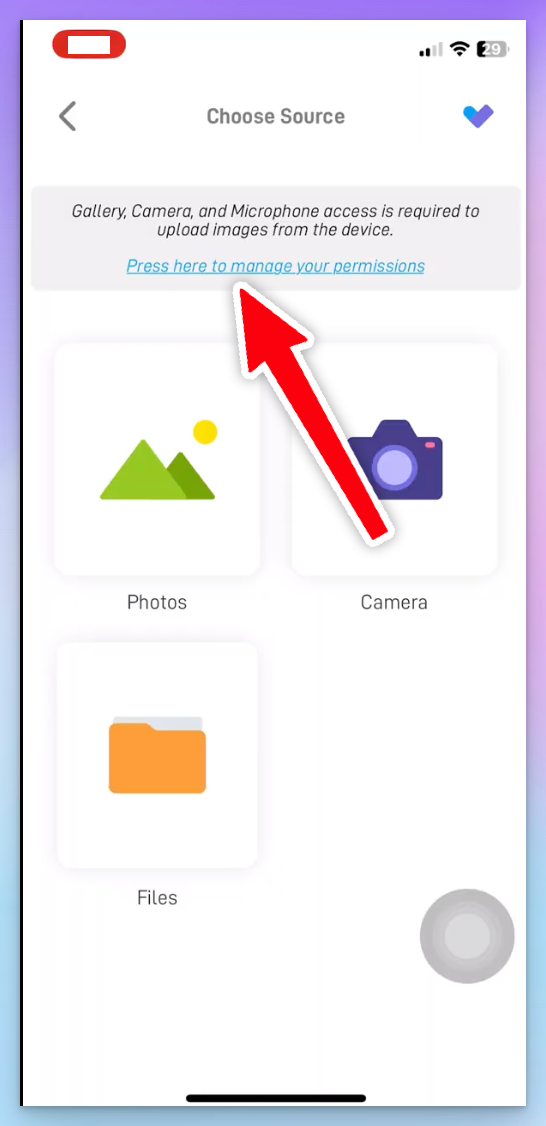
- Try attaching a photo or file again.
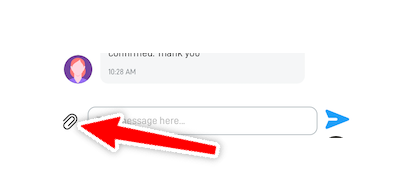
Check your iPhone settings
- Open Settings on your iPhone.
- Scroll down and tap NowServing.
- Tap Photos and choose Full Access (also shown as "All Photos"). If it says Limited or Selected Photos, the app can only see a few images.
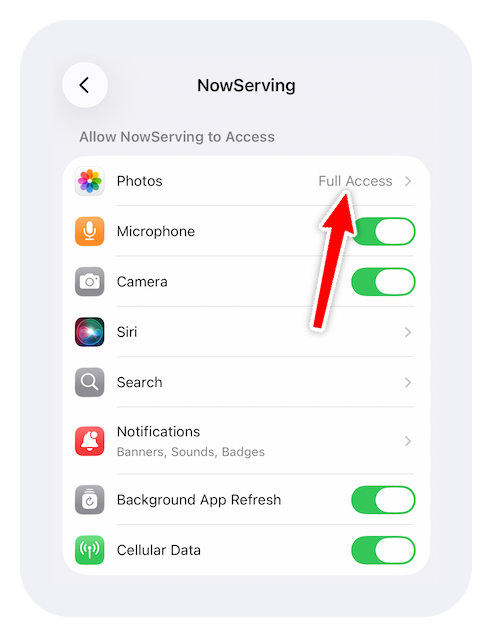
- Make sure Camera is switched on.
- Go back to the app and try again.
If it still does not work, reinstall the app
This is the fix that works in most cases, because reinstalling brings back the original permission prompts.
- Press and hold the NowServing icon on your Home Screen, tap Remove App, then Delete App.
- Open the App Store and install NowServing again.
- Open the app and log in.
- When the permission prompts appear, tap Allow on each one. For Photos, choose Allow Access to All Photos, not Select Photos.
- Open your chat and try attaching a photo or file again.
Will I lose anything if I delete the app?
No. Your account, appointments, prescriptions, and chat history are saved to your account, not to your phone. Everything is there again once you log back in.