


Booking for your child, your parents, or another family member? You don't need to make a separate NowServing account for them. One NowServing account can hold several patient profiles, so you can book for your family from your own account.
When you add a profile for your family member, the booking goes under their name and details instead of yours.
How to add a family member while booking
You book for a family member the same way you book for yourself.
- Search for the doctor and start your booking as usual.
- Under Patient Profile, tap Add New.
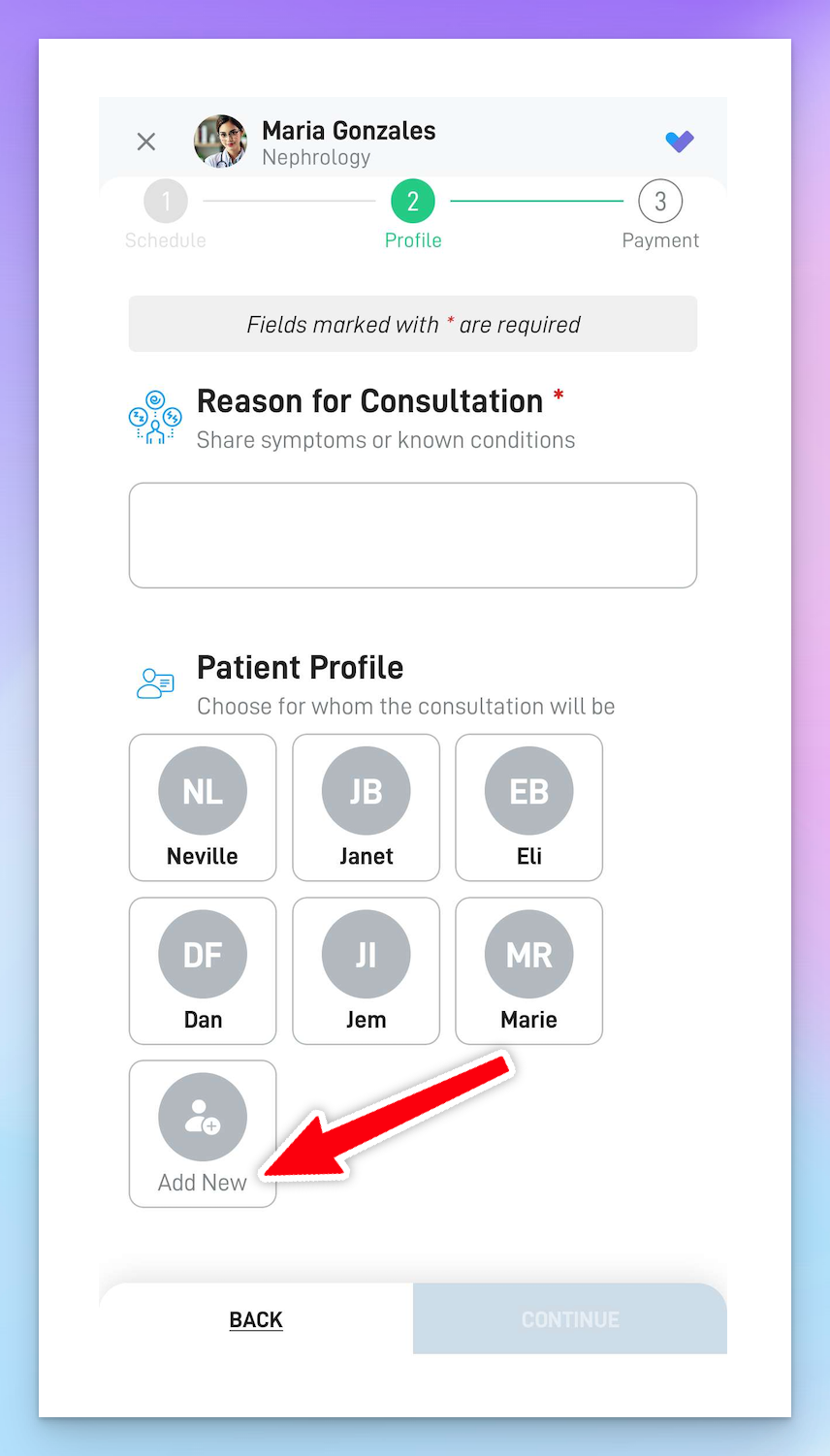
- The page will expand. Enter your family member's details.
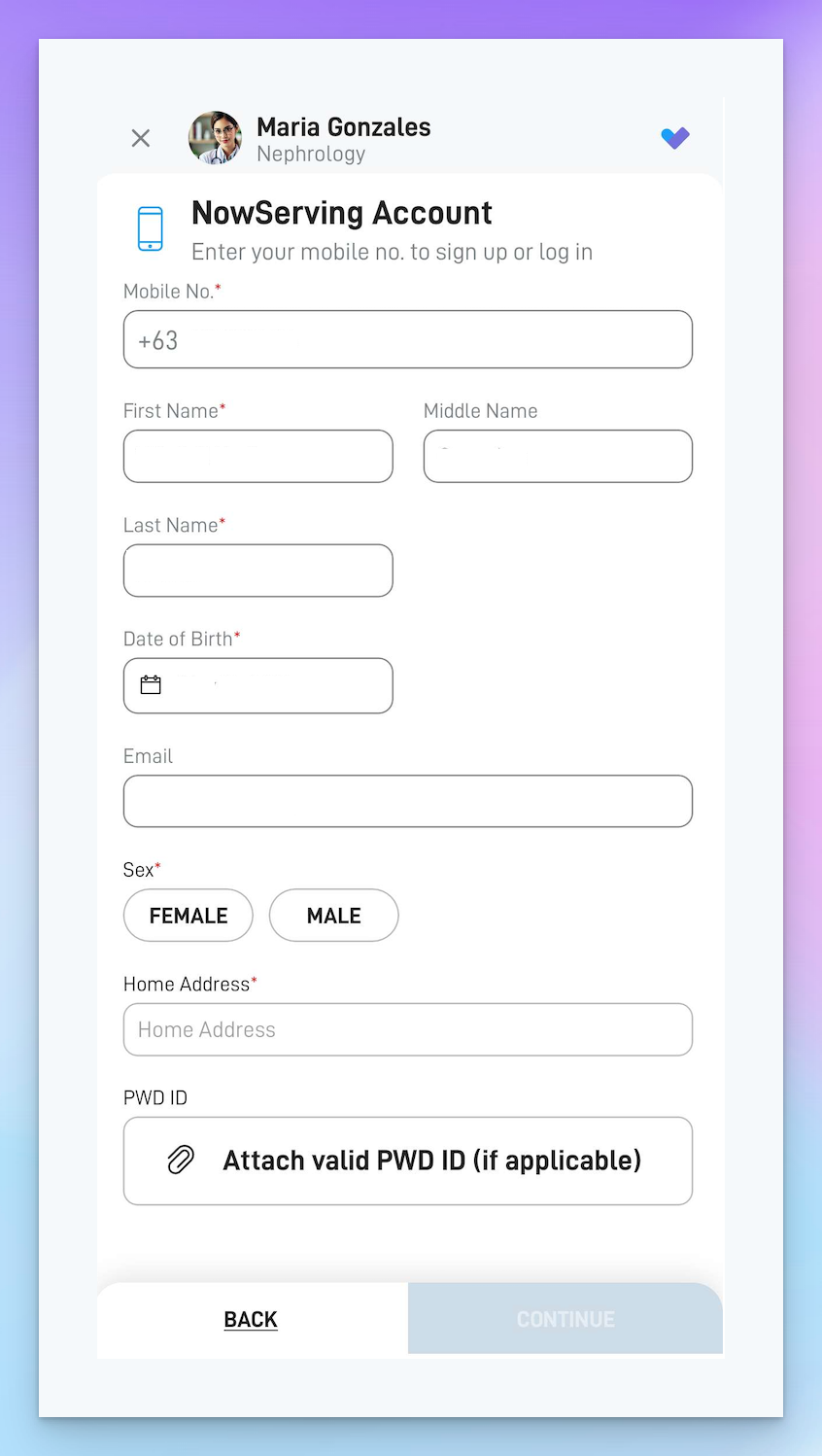
- Finish your booking as usual.
Tip: Use your family member's mobile number if they have one. They'll get the SMS notifications too, and they can log in to NowServing with their own number to see the files their doctor sends.
Can't find "Add New"?
You won't find it on the Home page. It shows up in the booking form, after you pick a doctor and start a booking.
If the doctor gave you a NowServing code
Some doctors don't take online bookings, but they can send a NowServing invite with a code. If your family member got one, here's how to add their profile:
- Log in to NowServing using the mobile number that was given to the doctor.
- Look for the NowServing invite from the doctor in your SMS or email. It includes the NowServing Code.
- Enter the code. In the NowServing app, scroll down to the bottom of the Home tab and enter it there.
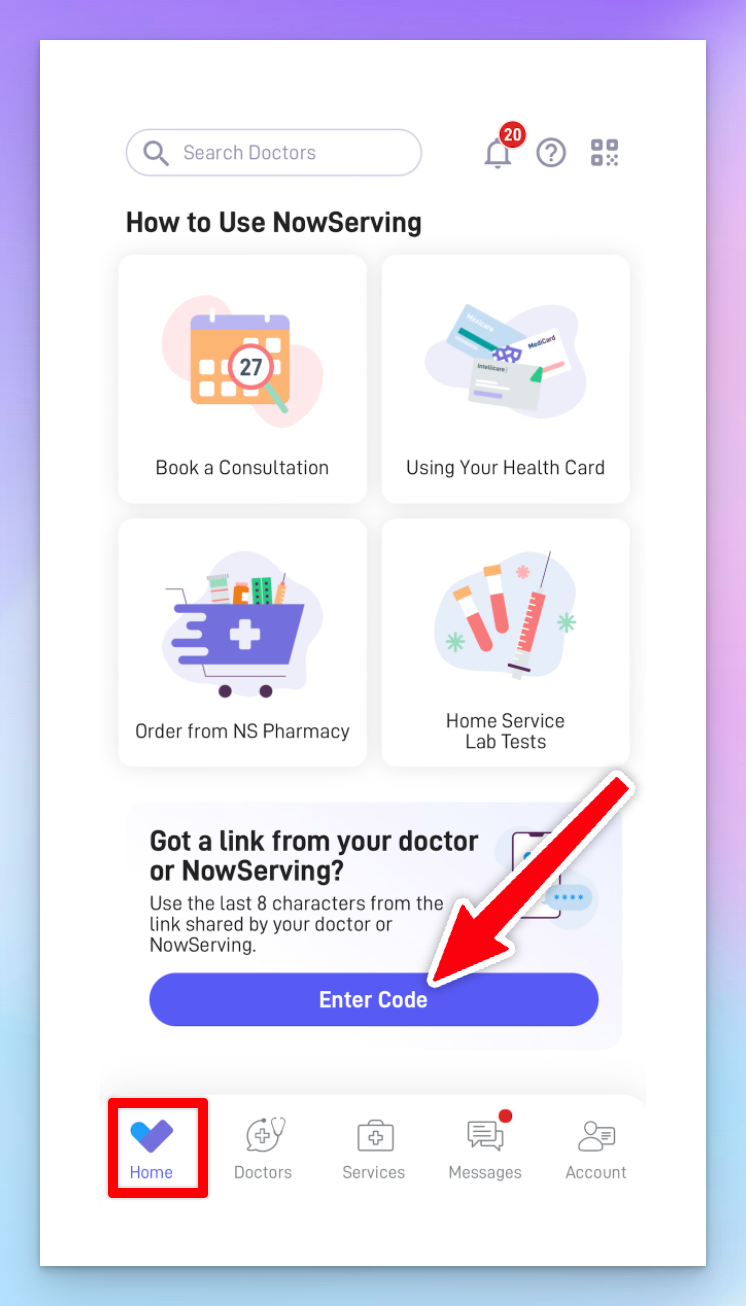
Once that's done, your family member's patient profile will be created.